Monday, February 7, 2011

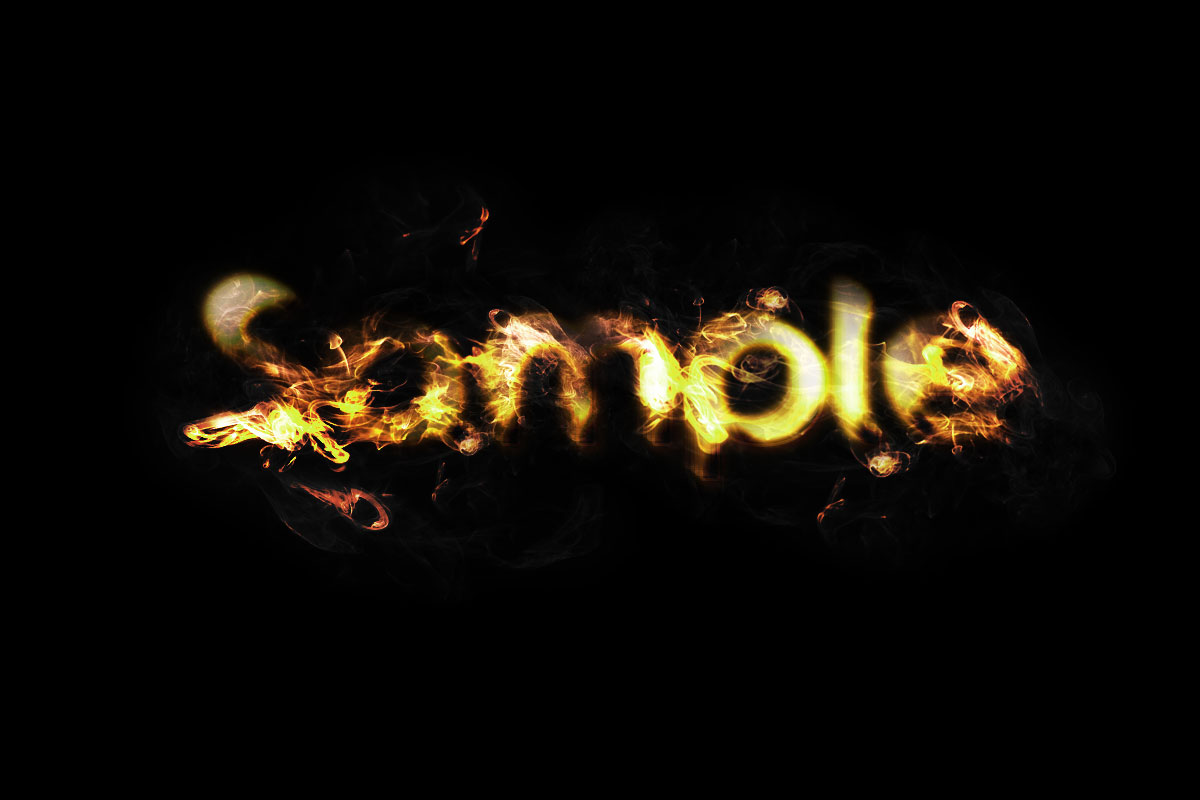
Create fire in text with Photoshop

Photoshop offers one of the most robust graphics editing experiences available. Sometimes, we just cannot stop ourselves applying some nice effects to beautifully designed typefaces. Therefore, we have created our own amazing text effect photoshop tutorial for you.
In this tutorial, I will show you the process involved in creating this golden flame text effect with soft smoke texture in Photoshop.

Final Result

To complete this tutorial, you will need the following stocks:
Font
Soft Smoke Texture
Step 1
Create a new document sized 1200 * 800px, fill the background with black colour. On the background type, use the font we’ve just downloaded to type some texts onto it.
Step 2
On the text layer, apply the following layer blending options:
Outer Glow
Inner Glow
Bevel and Emboss
Contour
Stroke
And you will have the following effect:
Step 3
Duplicate this text layer FIVE TIMES. For each duplicate layer, slightly adjust each layer’s position on the canvas, also alter the opacity of each duplicated layer for creating more depth. Here is what I have after adjusting each layer:
Step 4
Duplicate all preview text layer ONCE. Rasterize those duplicated text layers and merge the duplicated layers together. On the merged layer, apply the following Gaussian Blur Settings:
Change the blending mode of this merged layer to “Hard Light”, you will have the following effect:
Rename this merged layer to “Glow”, we will continue to use this layer for the next step.
Step 5
Duplicate this “Glow” layer THREE TIMES. From bottom to top, adjust each layer’s blending mode and opacity according to the following settings:
Duplicated layer 1:
Blending mode: vivid light
Opacity: 90%
Duplicated layer 2:
Blending mode: overlay
Opacity: 80%
Duplicated layer 3:
Blending mode: soft light
Opacity: 70%
And you will have the following effect:
Step 6
Load the “Soft Smoke texture” into Photoshop, use the Lasso Tool with a 20px feather setting, select a portion of the smoke texture, copy and paste it onto our text document.
Use the Free Transform tool (Ctrl +T) to rotate the texture until reaching the effect as follows:
Name this new layer as “Flame”, duplicate it a few time. Again on each duplicated layer, use the Free Transform tool to rotate and resize, so that the shape of each layer differs from each other. Also make sure the Smoke Texture covers the whole text. Here is what I have after the Free Transformation:
Step 7
Merge those duplicated layers from the previous step and keep its name as “Flame”. Change the blending mode of the merged layer to “Hard Light”. You will have the following effect:
On this layer, hit Ctrl + U and apply the following Hue and Saturation adjustments:
And you will have the following effect:
Step 8
Still on the “Flame” layer, add the following layer mask to it: (Hint: use a soft round brush with different flow and opacity settings to create depth)
Here is the effect after applying the mask:
Then we duplicate this “Flame” layer three times. Set the layer blending mode of the duplicated layers (from bottom to top) as “Hard Light”, “Overlay”, “Overlay”. You will have the following effect:
Step 9
Now we can add some smoke around the text so it doesn’t look too isolated. To do this, duplicate the “Flame” layer one more time and remove the mask. Desaturate this duplicate layer, change the blending mode to “Screen” and decrease the opacity to around 30%. Here is what I have so far:
Step 10
For some final adjustments, I added the following image adjustment layers on top of all previous layers:
Curves
Brightness and Contrast
Hue and Saturation
And here is the final effect:
OK, that’s it for this tutorial! You can of course add some of your own texture or filter effect and see what the end results are! Remember to always keep your own creativity! Here is an alternative version I have: (adjusted the colour balance a bit)
Hope you enjoy this tutorial, drop me a comment if you have any question, I will try my best to help you out. Cheers and have a nice day!

Sunday, January 2, 2011

TRON Minimal Design in Photoshop

TRON is definitely one of the geek’s dream-come-true movie. It’s suit and vehicles are perfectly slick which is why the attempts to assemble objects that replicates tools in TRON has been surfacing around the Internet. As for designer’s, with the right clicks and tricks using Photoshop, a TRON fiction does not neet to be hard.
Today we will create a TRON wallpaper in Photoshop using stock photos and vectors. We will give you a precise guidance on how to do it and why certain method is better. You will get an in-depth comprehension of what you are doing. Buckle up for digital dream!
tron preview How to Create a TRON Minimal Design in Photoshop
You will learn how to:
  • Analyze your design from out-of-the-box point of views
  • Create structured designs, based on hidden or related elements in your composition
  • Use shortcuts for a faster work flow
  • Make complex selections and cutouts via Channels
  • Effectively use general tools
  • Add perspective to your design
  • Combine vectors with pixels
  • Create light effects
  • Use blending modes
  • Use layer styles
Difficulty: Beginner – Intermediate. Completion time: 1 hour. Tools: Photoshop CS3, Illustrator CS3 optional.

Resources:

NOTE: To install the font, extract on Desktop the .zip archive containing the font, then copy them. Go to C:\WINDOWS\Fonts\ directory and paste them in.
Why can’t I just extract them directly to the Fonts folder?
Your operating system won’t allow your archiver to modify or add any file within the C:\WINDOWS\ directory, so that’s why you need to do this manually. If you have opened Photoshop, restart it, or else you won’t be able to see the newly installed font.
After I chose my resources, I started sketching up some lines based on the model. Below is a schematic of the inspiration sources for the glowing lines on the body: pose, muscles, apparel, body shape, weight distribution and bones.
sketch How to Create a TRON Minimal Design in Photoshop
To enhance a model’s pose or body features, it’s not enough to just throw some random lines on.
Everything must have a source, be it shown or hidden. Keep in mind that my sketch is only one of the infinite possibilities you have, I encourage you to experiment.

Let’s begin!

Step 1

Go to File > New, and set it to 1920x1080px in RGB color mode at 72 dpi.
1 vectorious tron minimal design tutorial How to Create a TRON Minimal Design in Photoshop

Step 2

Open the Veteran_of_the_Psychic_Wars_11_by_mjranum_stock.jpg. In the Layers palette, F7 double-click the lock near the layer thumb. This is compulsory if we want to edit the image via Channels. You should now have a "Layer 0".
2 vectorious tron minimal design tutorial How to Create a TRON Minimal Design in Photoshop

Step 3

Go to Layer > Duplicate Layer, CTRL+J. Now go to Filter > Other > High Pass. Use a 5px setting and hit OK. In the Layers palette, F7, set Blending mode to Overlay.
3 vectorious tron minimal design tutorial How to Create a TRON Minimal Design in Photoshop
This will make the image more clear and it will allow you to make a more precise selection of the hair.
3.1 vectorious tron minimal design tutorial How to Create a TRON Minimal Design in Photoshop

Step 4

Go to Layer > Merge Visible, CTRL+SHIFT+E, then go to Layer > Duplicate Layer, CTRL+J. Set Blending mode of the copied layer to Screen, then duplicate it two more times. Now we have a nice contrast between the model and the background.
4 vectorious tron minimal design tutorial How to Create a TRON Minimal Design in Photoshop

Step 5

Go to the Channels window Window > Channels and select the "Green" channel. Right-click it and select "Duplicate channel".
5 vectorious tron minimal design tutorial How to Create a TRON Minimal Design in Photoshop
The "Green" channel provides the highest contrast of all the channels. We duplicate it because we need dummy channel to work on to further improve the contrast.

Step 6

Go to Image > Adjustments > Curves, CTRL+M and shape the curve as shown below. The lower half will darken the shadows and the upper half will lighten the highlights. Do this twice.
6 vectorious tron minimal design tutorial How to Create a TRON Minimal Design in Photoshop

Step 7

Go to Layer > Adjustments > Levels and use the settings below.
7 vectorious tron minimal design tutorial How to Create a TRON Minimal Design in Photoshop

Step 8

Grab the Brush Tool, B, set Hardness to 100% and cover with black the interior white spots in the hair, the face and the rest of the body.
8 vectorious tron minimal design tutorial How to Create a TRON Minimal Design in Photoshop
We don’t need any details in the channel, just the outline of the model.

Step 9

Grab the Dodge Tool, O, set it on Highlights and lighten any extra grays in the image.
9 vectorious tron minimal design tutorial How to Create a TRON Minimal Design in Photoshop
9.1 vectorious tron minimal design tutorial How to Create a TRON Minimal Design in Photoshop

Step 10

CTRL+click the "Green copy" channel thumb, go to the Layers palette, F7, Go to Select > Inverse, CTRL+SHIFT+I select the bottom-most layer and copy it, CTRL+C.
CTRL+clicking a thumbnail whether it’s channel or layer loads a selection of the contour of the clicked layer/channel.
10 vectorious tron minimal design tutorial How to Create a TRON Minimal Design in Photoshop

Step 11

Go to Window > Untitled-1.psd our document and paste it, CTRL+V. Go to Edit > Free Transform, CTRL+T and resize it to fit the canvas, like below. Hold the SHIFT key to preserve its proportions. Hit Enter to exit Free Transform mode. To clear the clothing curls, use the Clone Stamp Tool, S: use ALT+click to pick source, then click on the curl.
Do the same for the sword in the "model 2" picture, but use the Path Tool, P to cut it.
11 vectorious tron minimal design tutorial How to Create a TRON Minimal Design in Photoshop

Step 12

Open the "Tech Vector Pack 3" .eps file. When prompted to input a file size, type in about 3000px for width. Hit OK.
For Illustrator, you simply open it in vector format. Photoshop can open .eps Illustrator 8 files, but in raster format. You can however open it in any size you want – the .eps file is vector!
12 vectorious tron minimal design tutorial How to Create a TRON Minimal Design in Photoshop

Step 13

Grab the Rectangular Marquee Tool, M, select a round tech shape click-drag to create the selection rectangle, copy it, CTRL+C, go back to our document Window > Untitled-1.psd and paste it, CTRL+V.
13 vectorious tron minimal design tutorial How to Create a TRON Minimal Design in Photoshop

Step 14

Go back to the vector pack file Window > designious tech shapes 4. eps, copy another shape and paste it into our document, like in Step 13.
14 vectorious tron minimal design tutorial How to Create a TRON Minimal Design in Photoshop

Step 15

Grab the Selection Tool, V, check the "Auto Selection" box and click the first tech shape pasted in and duplicate it, CTRL+J. Now go to Edit > Free Transform, CTRL+T hold the CTRL key and click-drag the the top left corner, like below. Do the same for the top right corner. Hit Enter to exit Free Transform mode.
15 vectorious tron minimal design tutorial How to Create a TRON Minimal Design in Photoshop

Step 16

Duplicate the first shape (original one) and place the copies as shown below. Grab the Path Tool, P, set it on Shapes and draw each glow line on the body, based in the sketch.
16 vectorious tron minimal design tutorial How to Create a TRON Minimal Design in Photoshop
In the Layers palette, select all these shapes and hit CTRL+E to merge them.
16.1 vectorious tron minimal design tutorial How to Create a TRON Minimal Design in Photoshop

Step 17

Grab the Line Tool, U, set it to Shape Layers and 7 px Width, draw an oblique line, then hold SHIFT key. Now change the line to "Add to shape area (+)" and draw a horizontal line. Hold SHIFT key to make it perfectly horizontal.
17 vectorious tron minimal design tutorial How to Create a TRON Minimal Design in Photoshop

Step 18

Grab the Horizontal Type Tool, T, click-drag to create a type box and input a random text. Set the font to "V5 Prophit".
18 vectorious tron minimal design tutorial How to Create a TRON Minimal Design in Photoshop

Step 19

Select the "Shape 1" layer and go to Layer > Duplicate Layer, CTRL+J. Place several copies like below. Do the same for the text. To change the type input, double-click the layer thumb in the Layers palette.
19 vectorious tron minimal design tutorial How to Create a TRON Minimal Design in Photoshop

Step 20

Go to Layer > New Fill Layer > Solid color. Select a dark blue color and hit CTRL+SHIFT+[ to send it to back.
This will be a nice background for our image.
20 vectorious tron minimal design tutorial How to Create a TRON Minimal Design in Photoshop

Step 21

Select the large shape, and click the "fx" button in the Layers palette, F7. Select "Blending Options". Use the settings below.
21 vectorious tron minimal design tutorial How to Create a TRON Minimal Design in Photoshop
21.1 vectorious tron minimal design tutorial How to Create a TRON Minimal Design in Photoshop

Step 22

ALT+click the "fx" icon that appeared near the layer thumb and click-drag it to the other round shapes. You can recognize them easily, they aren’t named "Shape …" and don’t have a "T" on the thumb.
22 vectorious tron minimal design tutorial How to Create a TRON Minimal Design in Photoshop

Step 23

Create a new layer above it (select the layer and hit CTRL+SHIFT+N to create a new layer, then select both layers and hit CTRL+E (merge layers)). For the selected shapes, go to Filter > Blur > Gaussian Blur. Use various settings from 2 to 6px, as you see fit.
23 vectorious tron minimal design tutorial How to Create a TRON Minimal Design in Photoshop
To add more perspective, add more tech shapes over them.
23.1 vectorious tron minimal design tutorial How to Create a TRON Minimal Design in Photoshop
23.2 vectorious tron minimal design tutorial How to Create a TRON Minimal Design in Photoshop

Step 24

Grab the Selection Tool, V, select the small shape and lower its Opacity. 29% will do nicely.
24 vectorious tron minimal design tutorial How to Create a TRON Minimal Design in Photoshop
Do the same for the other blurred shapes, but vary the Opacity a bit.
24.1 vectorious tron minimal design tutorial How to Create a TRON Minimal Design in Photoshop

Step 25

Create a new layer, CTRL+SHIFT+N, Grab the Elliptical Marquee Tool, M, set Feather to 50 px and make a selection like below.
25 vectorious tron minimal design tutorial How to Create a TRON Minimal Design in Photoshop

Step 26

Grab the Paint Bucket Tool, G, ALT+click one of the tech shapes to pick the color and fill the selection. In the Layers palette, F7, set the layer’s blending mode to Overlay. Do the same for the bottom side.
26 vectorious tron minimal design tutorial How to Create a TRON Minimal Design in Photoshop

Step 27

Create a new layer, CTRL+SHIFT+N, grab the Elliptical Marquee Tool, M, set Feather to 30 px and make a selection like below. Grab the Paint Bucket Tool, G and fill the selection.
27 vectorious tron minimal design tutorial How to Create a TRON Minimal Design in Photoshop

Step 28

Repeat Step 28 for the shape behind the model.
28 vectorious tron minimal design tutorial How to Create a TRON Minimal Design in Photoshop

Step 29

Grab the Selection Tool, V and click the model. Now go to Layer > New Adjustment Layer > Brightness/Contrast and Black & White. For each, use the settings shown below. For the Black & White layer, set Opacity to 70%.
29 vectorious tron minimal design tutorial How to Create a TRON Minimal Design in Photoshop
I prefer using Black & White over Hue/Saturation because it also provides a tones control, not just a desaturation.
29.1 vectorious tron minimal design tutorial How to Create a TRON Minimal Design in Photoshop

Step 30

Create a new layer, CTRL+SHIFT+N and ALT+click between it and the adjustment layer beneath it. Set Blending mode to "Color Dodge".
30 vectorious tron minimal design tutorial How to Create a TRON Minimal Design in Photoshop

Step 31

Grab the Brush Tool, B, hit "3" to set the brush Opacity to 30%, set Hardness to 0%, ALT+click on the teal tech shape and paint over the body highlights, part of the hair and face.
31 vectorious tron minimal design tutorial How to Create a TRON Minimal Design in Photoshop

Step 32

Change the brush Opacity to 70% and paint over a few highlights, but in smaller areas.
32 vectorious tron minimal design tutorial How to Create a TRON Minimal Design in Photoshop

Step 33

In the Layers palette, F7, select the top-most layer and go to Select > All, CTRL+A, then hit CTRL+SHIFT+C to copy a merged version of the document and hit CTRL+V to paste it.
33 vectorious tron minimal design tutorial How to Create a TRON Minimal Design in Photoshop

Step 34 – Last step

Go to Filter > Sharpen > Unsharp Mask. Use the settings below or feel free to use your own. Don’t overdo it though, else the image will look too sharp.
34 vectorious tron minimal design tutorial How to Create a TRON Minimal Design in Photoshop
Here’s the final view of what you’ll be getting assume you followed through the entire tutorial correctly.
final vectorious tron minimal design tutorial How to Create a TRON Minimal Design in Photoshop